Data recovery service for RAID systems File Restore Home PageFile ScavengerData Recovery ServicesFile Recovery SupportAbout Hard Drive Recovery     Internet Security By ControlScan         Data Recovery Software & Services - VefiSign Secure Order
 

Data Recovery Tool
  File Scavenger®

Services
  RAID Recovery

Site Services
  Download
  Buy Online
  Account Login

Language
  English
  Deutsch
  
  Français
  Italiano
  Español

Magazine Reviews
  Maximum PC

Testimonials
What our customers are saying!
 
   Microsoft Certified Partner
 
        Meets allBBBOnLine Reliability participation and Better Business Bureau membership standards.
 

RAID Recovery Services >  Remote Assistance > Preparation > Step 3

Step 3: Create backup copies of the original disks

Cautious customers can create a backup copy of each original disk so that data is still recoverable in case of an additional disk failure. A disk can be backed up to a disk image file, which is an exact binary copy, sector by sector of the original disk. Many disk utilities provide this function.

A disk image file can be created on a drive with free space. If the original disks are large, getting sufficient disk space to store the disk image files can be difficult. The time taken to back up the disks is another factor to consider. As of this writing it is common to obtain a backup rate of about 100 GB per hour with an internal drive as the destination. An external drive or a shared network folder can be several times slower.

If all member disks in a RAID 5 are in working order and free of corruption (i.e., no new data has been written on them), it is not necessary to backup the disks. A RAID 5 can be recovered without one disk.

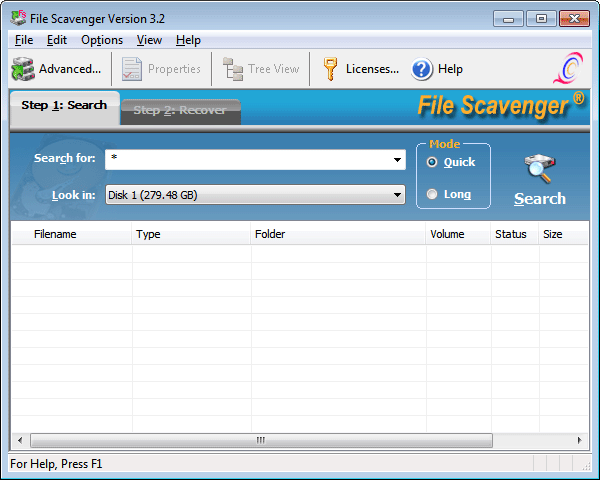
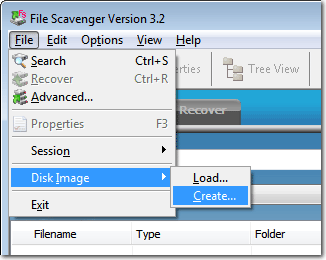
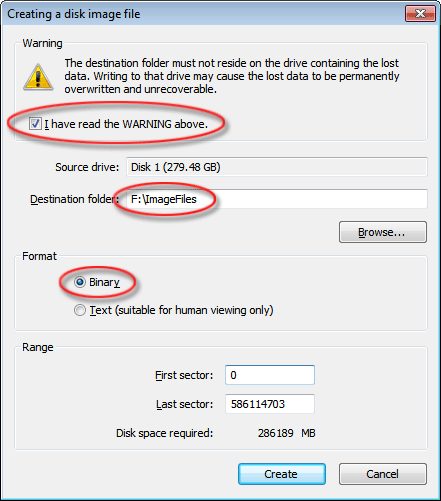
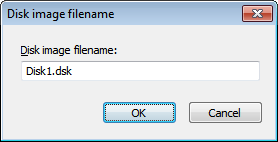
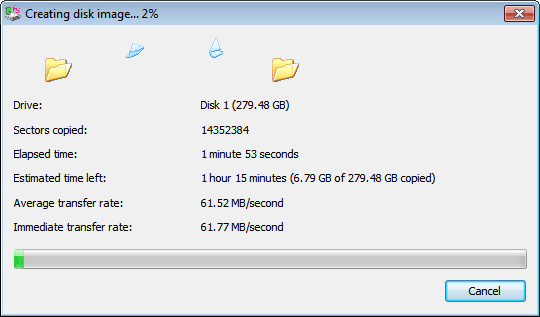
To create a disk image file with File Scavenger®, select the disk number to be copied. Click OptionsTrace. Acknowledge that you have read the warning and select a destination (Trace) folder. Then click Write Binary Data and click Dump. Specify a filename such as "Disk1.dsk" if you are copying Disk 1.

Presently there is no progress bar, but it is being added to a soon-to-be-released version. To monitor progress, in Windows Explorer right click on the drive letter containing the destination folder and click Properties. Monitor the current Used Space value to determine progress.

Creating a disk image file

Creating a disk image file

Creating a disk image file

Creating a disk image file

Monitoring disk copying progress

In Windows Explorer check the properties of drive F: to monitor copying progress.